Markdown cheat sheet for notes and checklists
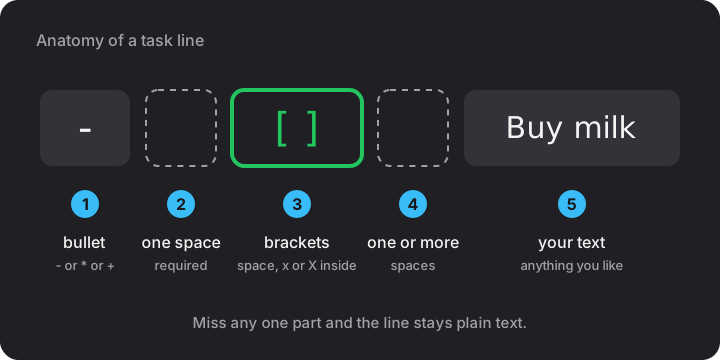
A task line in Markdown has exactly five parts in a fixed order: a bullet, a space, a bracket pair holding a space or an x, another space, and your text. Miss one and your checklist turns into plain characters. This cheat sheet starts with that rule, then covers every other piece of Markdown that earns its place when you keep notes online.
Markdown is plain text with a few punctuation habits. No toolbar, no hidden formatting, and the note still reads fine if nothing ever renders it. That is why I keep lists and meeting notes in it: a note typed today opens in any editor on any device. In the Notes Online page the same text can be shown as plain Text, as a tappable Checklist or as a formatted Preview. Only the last two care whether the syntax is right.
The one rule behind every checklist
The GitHub Flavored Markdown specification defines a task list item as a list item whose text starts with [ ] or [x] (a capital X counts too) followed by whitespace. The bullet in front can be a dash, a star or a plus, and a number with a dot or a bracket works as well. All of these are valid tasks:
- [x] Send the invitations
* [X] Order the cake
+ [ ] Buy candles
1. [ ] Print the menu
The spacing is where people trip. I see the same five typos again and again:
| You type | What goes wrong | Write it as |
|---|---|---|
[] Buy milk | No bullet and no space inside the brackets | - [ ] Buy milk |
-[ ] Buy milk | No space after the dash, so it is not a list item | - [ ] Buy milk |
- [ ]Buy milk | No space after the closing bracket | - [ ] Buy milk |
- [done] Buy milk | Only a space, x or X may sit between the brackets | - [x] Buy milk |
- ( ) Buy milk | Round brackets instead of square ones | - [ ] Buy milk |
You rarely need to type the prefix by hand. Write the list one item per line, then press “Turn lines into tasks” (or paste the list into the Add box in Checklist view): every plain line becomes - [ ] item, a leading dash, star, number or bullet dot is stripped first, and the typos in the table above, such as [] item and -[ ] item, are repaired on the way. Lines that start with # stay headings. Tapping a box in Checklist view writes [x] or [ ] back into the text, so the ticks survive a download as .txt or .md.
The syntax table I actually use
Markdown has more features than a notepad needs. This is the working set, in the order I reach for it:
| You type | You get | When I use it |
|---|---|---|
# Trip plan | Heading (one to six # signs) | Section titles inside a long note |
**urgent** | Bold | The one word that must not be missed |
*maybe* | Italic | Tentative items, asides |
~~cancelled~~ | Strikethrough | Dropped items I still want to see |
- milk | Bullet list | Anything unordered |
1. Boil water | Numbered list | Steps that must happen in order |
- [ ] milk | Tick box | Anything I will cross off |
> Call after noon | Block quote | A line copied from an email or chat |
`ls -la` | Inline code | File names, commands, codes |
[label](https://example.com) | Link | Pages I will need again |
For a block of code, put three backticks on a line of their own, paste the code, and close with three more. Everything between them keeps its spaces and line breaks, which makes it the right home for pasted addresses, serial numbers and snippets.
Tables use pipes and a separator row of dashes:
| --- | --- |
| Milk | 2 |
| Eggs | 12 |
That renders as a two-column table with a header row and two body rows. The columns do not have to line up in the source; neat alignment is only for your own eyes. Tables are another GFM extension, together with strikethrough and task lists, so they look the same on GitHub and in most other Markdown tools.
What Preview shows, and what stays text
A notepad holds text that came from emails, web pages and strangers. Showing that text as live HTML would be an open door, so the Preview is deliberately strict:
- Links: only
http:,https:andmailto:addresses become clickable. They open in a new tab withnoopener noreferrer. A link with any other scheme, script-style addresses anddata:included, stays as text. A web address typed in full, such ashttps://example.com, becomes a link without any brackets. - Raw HTML: shown as literal characters. If you type
<b>hi</b>you see exactly that, not bold text. The GFM spec has a "disallowed raw HTML" extension for the same reason. - Images: not rendered. A note is for words; paste a link instead.
Preview is a view, not a different file. Nothing you see there is saved separately, and switching back to Text always shows your original characters. Tick boxes in Preview work too: a tap there writes [x] or [ ] into the text.
A full example note
Here is a real Saturday note of the kind I write, with a checklist, a numbered list and a quote:
**Shop first**, then home.
## Shopping
- [x] Milk
- [ ] Eggs
- [ ] Coffee filters
- [x] Bread
## Calls
1. Plumber
2. Bank branch
> Plumber is free after noon
In Preview you get a large heading, a bold phrase, a smaller "Shopping" heading with four boxes (two ticked), a two-step numbered list and an indented quote. In Checklist view the same note reports 2 of 4 done, which is 50 %. The lines that are not tasks are shown as plain headings and text, so you can mix notes and tasks in one place.
Habits that keep a note clean
- One blank line between blocks. A heading, a list and a paragraph each want air around them. Without it, some renderers glue a list to the paragraph above.
- Escape what you mean literally. A backslash in front of a character, as in
\*, tells standard Markdown to show it as it is. Use it when a star or a hash at the start of a line should stay a star or a hash, and check the result in Preview. - Keep lists flat. If an item needs a sub-step, give the sub-step its own line. Flat lists survive copy and paste into email far better than deep nesting.
- One note per project, not per day. A checklist you can search and tick beats twenty dated scraps. Meeting notes follow the same rule; see the meeting notes template for a layout that ends in clear action items.
- Back up what matters. Notes in the browser live in one place only. Where online notes are saved explains how to keep a copy.
The GFM specification at github.github.com/gfm is short enough to skim once, and it settles every argument about task lists, tables and strikethrough.
Frequently asked
How do I make a checkbox in Markdown?
Start a line with a dash, a space, then [ ] for an open box or [x] for a ticked one, then another space and your text: - [ ] Buy milk. The space inside the brackets and the spaces around them are all required.
Why does my checklist show plain text instead of boxes?
Almost always a spacing slip: no space after the dash, no space inside the brackets, or no space after the closing bracket. Compare your line with - [ ] item character by character.
Is a capital X the same as a lowercase x?
Yes. The GitHub Flavored Markdown spec accepts [x] and [X] as a ticked box. A space inside the brackets means not done.
Will my Markdown note work on GitHub or other tools?
Task lists, tables and strikethrough are GFM extensions, so notes written here read the same on GitHub and in most Markdown tools. Download the note as .md to move it.
Can I put an image or HTML in a note?
You can type them, but Preview shows them as plain text. Images are not rendered and raw HTML is never executed, which keeps pasted content harmless.