Where online notes are saved - and how not to lose them
You open your online notepad on Monday and the page is empty. Nothing was deleted by you, and nobody else touched it. Online notes that live in the browser are stored in one place on one device, and a handful of ordinary events can empty that place. This guide shows where your notes are saved, what wipes them, and the short routine that keeps a copy.
Where your notes actually live
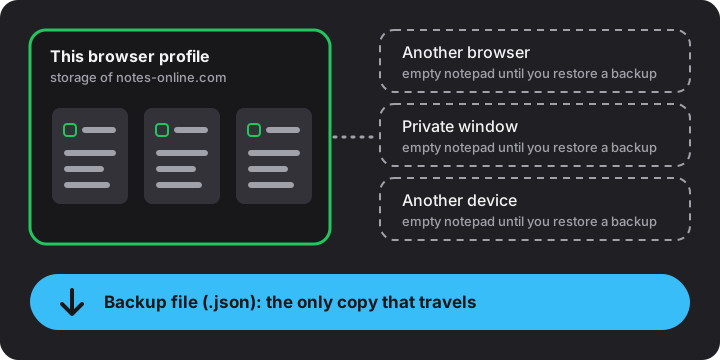
When you type in Notes Online, the page saves your text in the browser's localStorage, a small key-value store the browser keeps for each website. No account is involved, and the text is not sent anywhere to be saved. That is why it opens instantly and why nothing needs a sign-in. It is also why the notes are tied to a specific place:
- one browser (Chrome and Firefox keep separate stores),
- one profile inside that browser (work and personal profiles do not share),
- one device,
- one address: the site name with
wwwand without it, orhttpandhttps, count as different origins with different storage.
MDN's page on storage quotas and eviction criteria describes these rules, including the fact that a site's data is deleted as a whole, not note by note. See MDN: Storage quotas and eviction criteria.
What empties a browser notepad
| Event | Notes survive? | What to do |
|---|---|---|
| Closing the tab or restarting the computer | Yes | Nothing |
| Clearing cookies and site data | No | Restore from your backup file |
| Private or incognito window | Not shared; wiped on close | Use a normal window for notes you want to keep |
| Another browser, profile or device | Not there | Move notes with a backup file or a share link |
| Safari after 7 days without a visit | May be deleted | Visit the site, or download a backup weekly |
| Low disk space | May be evicted | Keep a backup; ask for persistent storage |
| Uninstalling or resetting the browser | No | Restore from your backup file |
The Safari seven-day rule
Safari is the one browser with a written deadline. WebKit's anti-tracking policy deletes all script-writable storage for a site, including localStorage, after seven days of Safari use in which you did not interact with that site. Web apps added to the Home Screen have their own counter. If you take notes in Safari and then skip a couple of weeks, the notes can be gone when you come back. The details are in the WebKit post Full Third-Party Cookie Blocking and More.
In practice: if you use Safari, open the notepad at least once a week, or treat the backup file as your real copy. The page shows a quiet reminder chip once seven days have passed since your last backup (or since you started) and a note has changed since.
Size limits and eviction
Browsers give each site a few megabytes of localStorage; MDN gives about 5 MiB per origin. Going over throws a quota error, and the notepad warns you and offers a download instead of silently dropping text. Plain text is small. At roughly six characters per word, a 1,000-word note is about 6,000 characters. Even if every character counts as two bytes, 5 MiB holds more than 400 notes of that size, so quota is rarely the problem. Eviction is: by default the browser may clear a site's storage under disk pressure, least recently used sites first.
A site can ask the browser to treat its storage as persistent, which makes eviction under pressure much less likely. Notes Online makes that request once, after you create your second note, so you do not get a prompt for a notepad with a single scrap in it. The request does not override you clearing site data by hand, and some browsers decline it. That is another reason to keep a file. The “Where notes are stored” panel shows the number of notes, roughly how much space they use, and whether the browser agreed to keep them.
A backup routine that takes a minute
- Download all notes. One .json file holds every note with its title, text, pin and times.
- Put the file somewhere you already back up: a folder that syncs to your own cloud storage, or a USB drive.
- Repeat weekly if the notes matter, monthly if they are shopping lists. The reminder chip nudges you after seven days with changes.
- To restore, choose "Restore from backup" and pick the file. Notes merge with what is already there, and notes with identical text are skipped. A file that is not a valid backup is refused and nothing changes. Backup files of up to 5 MB are accepted.
For one note at a time, download it as .txt or .md. For a single note to another person or your own phone, the share link puts the compressed text in the part of the address after the #, which the browser never sends to the server. It holds at most 8000 characters: a longer note is refused with a message that points to the file download, instead of being cut off. The receiver always gets it as a new note, so it never overwrites theirs.
If your notes seem to have vanished
Go through these in order before assuming the worst; the data is often still there:
- Same browser and profile? Notes made in one will not appear in another.
- Same address? Check for
wwwand forhttpversushttps. The language versions of the page share one store. - Private window? A private window starts empty and forgets everything on close.
- Did you clear site data or use a cleaner app? Disk cleaners often clear it without asking.
- A long gap in Safari? The seven-day rule may have applied.
- Do you have a backup file? Restore it. The merge will not duplicate notes you still have.
An earlier version of this page saved notes under a key that changed between visits, so notes looked lost after a language switch. The current version uses one fixed store and, on first load, recovers notes saved by the old one. If it finds any, a message says “Notes recovered from the previous notepad” and how many.
What not to keep in a browser notepad
Anyone who can sit down at your signed-in computer can open the same page and read the same notes. They are not encrypted, so keep passwords, card numbers and recovery codes in a password manager instead. Shopping lists, drafts and meeting notes are the right content. For writing them in a way that stays portable, see the Markdown cheat sheet, and for turning them into actions, the meeting notes template.
Frequently asked
Where are my online notes saved?
In your browser's localStorage, for this site, in this browser profile on this device. They are not uploaded to a server or an account.
Why did my notes disappear?
Usually because you are in another browser, profile, private window or address, or because site data was cleared. Safari can also delete a site's storage after seven days without a visit. Restore from a backup file if you have one.
Can someone else read my notes?
Anyone with access to your signed-in browser profile can open the page and read them. Notes are not encrypted, so keep passwords and card numbers out of them.
How many notes can I store?
Browsers allow about 5 MiB of localStorage per site. Plain text is small, so that holds hundreds of long notes, and the notepad warns you if a save fails.
How do I move notes to another device?
Download all notes as one .json file and restore it on the other device, or send a single note by share link. Both work without an account.